All tools

A planner that knows the budget.

Book people onto jobs by clicking and dragging. Every booking draws down the days that person was budgeted, by stage, so you can see at a glance whether the plan and the budget agree.

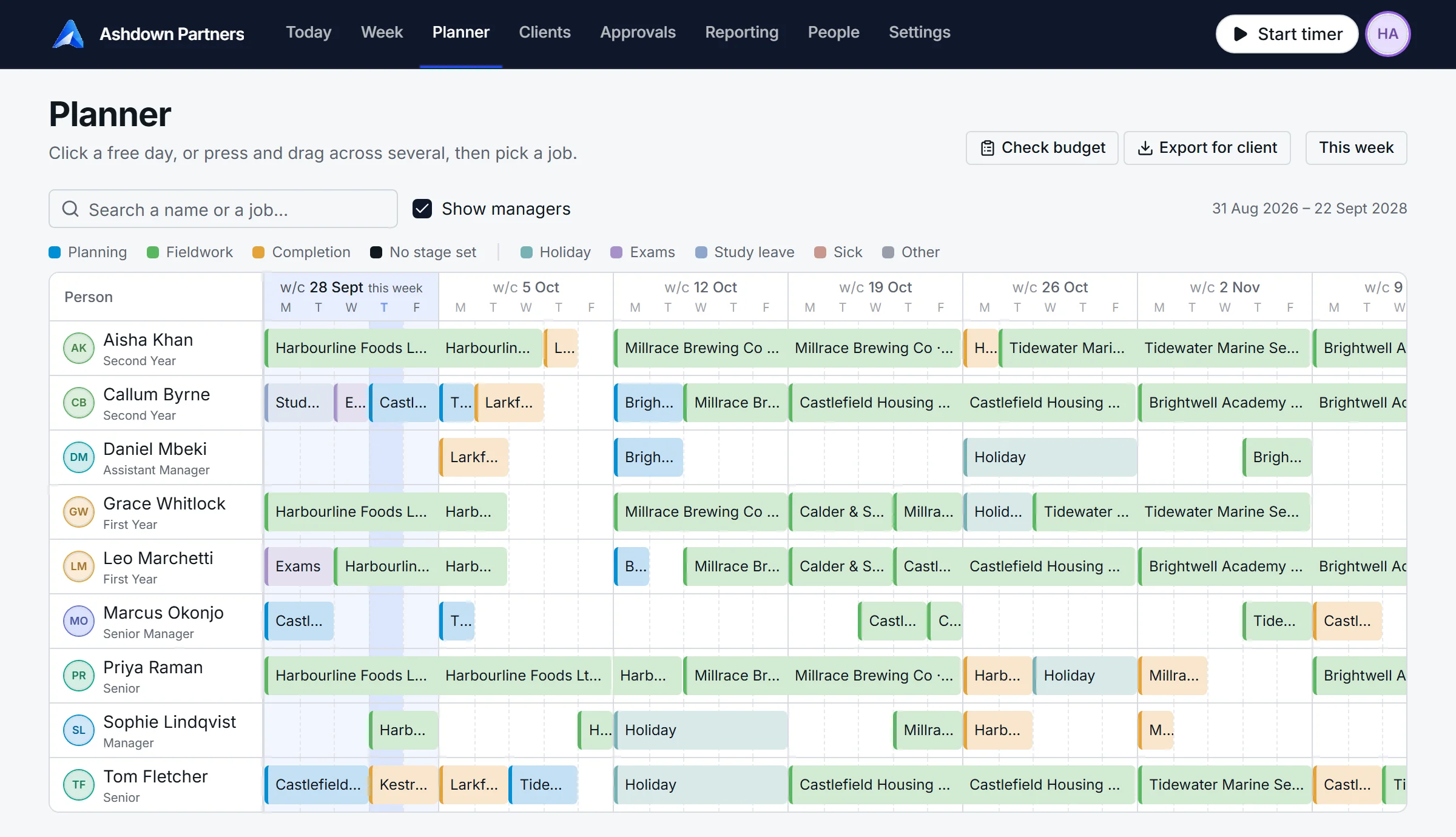
The planner: people down the side, working days across the top, bookings shown as coloured bars.

Try it. Drag someone's time.

Example scenario: this is a small working copy of the planner. Priya and Grace each have two budgeted days still to book on Harbourline Foods. Drag the right edge of a bar to add days, or drag a bar to another week or another person, and watch the check beside it.

Harbourline Foods Ltd – Audit 2026Fieldwork, three weeks from 5 October
w/c 5 Octw/c 12 Octw/c 19 Oct
Priya RamanSenior
Aisha KhanSecond Year
Grace WhitlockFirst Year

Check budget

Fieldwork days budgeted against days booked.

PersonBudgetBookedLeft

With a keyboard: Tab to a bar, arrow keys to move it, Shift and an arrow to change its length.

Click a day, pick a job, say which stage

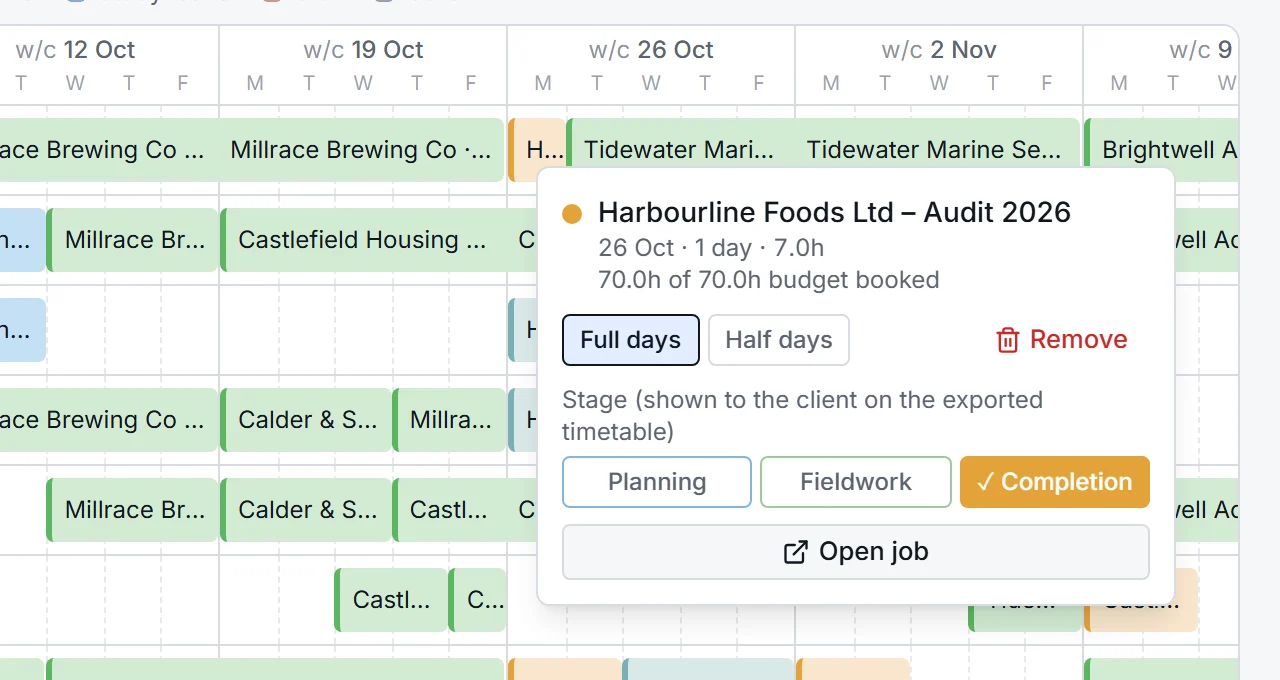
Click one free day, or press and drag across a run of them, and choose the job. The planner asks whether it is planning, fieldwork or completion, and books it. Click a bar afterwards to switch between full and half days, change the stage, open the job or remove it.

The card shows how much of that person's budget for the job is now booked, so you know when to stop.

Planning Fieldwork Completion Holiday, study, exams
A booking's card in the planner: Harbourline Foods, 70 of 70 budgeted hours booked, with full or half days and the stage to choose.

Check the plan against the budget

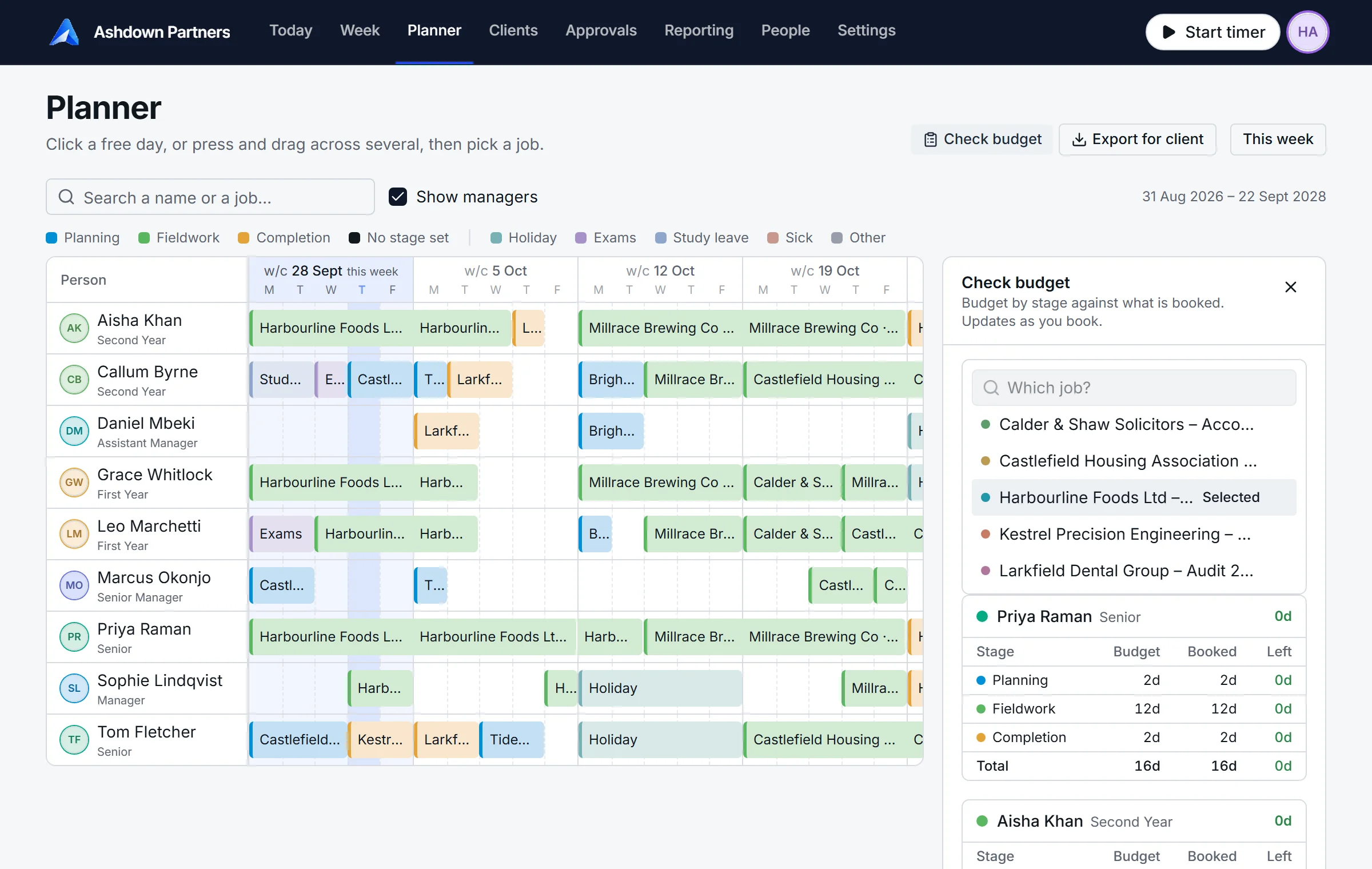
Open Check budget beside the grid and choose a job. For each person it shows the days budgeted at each stage, the days booked, and what is left. It refreshes as you book, so you can keep dragging until every line reads zero.

Bookings never change a budget. They draw it down. If the plan needs more days than the budget allows, that is a conversation to have, and now you can see it.

The Check budget panel beside the planner: for Priya Raman, planning 2 days budgeted and booked, fieldwork 12 and 12, completion 2 and 2, nothing left.

See who is free before you promise a date

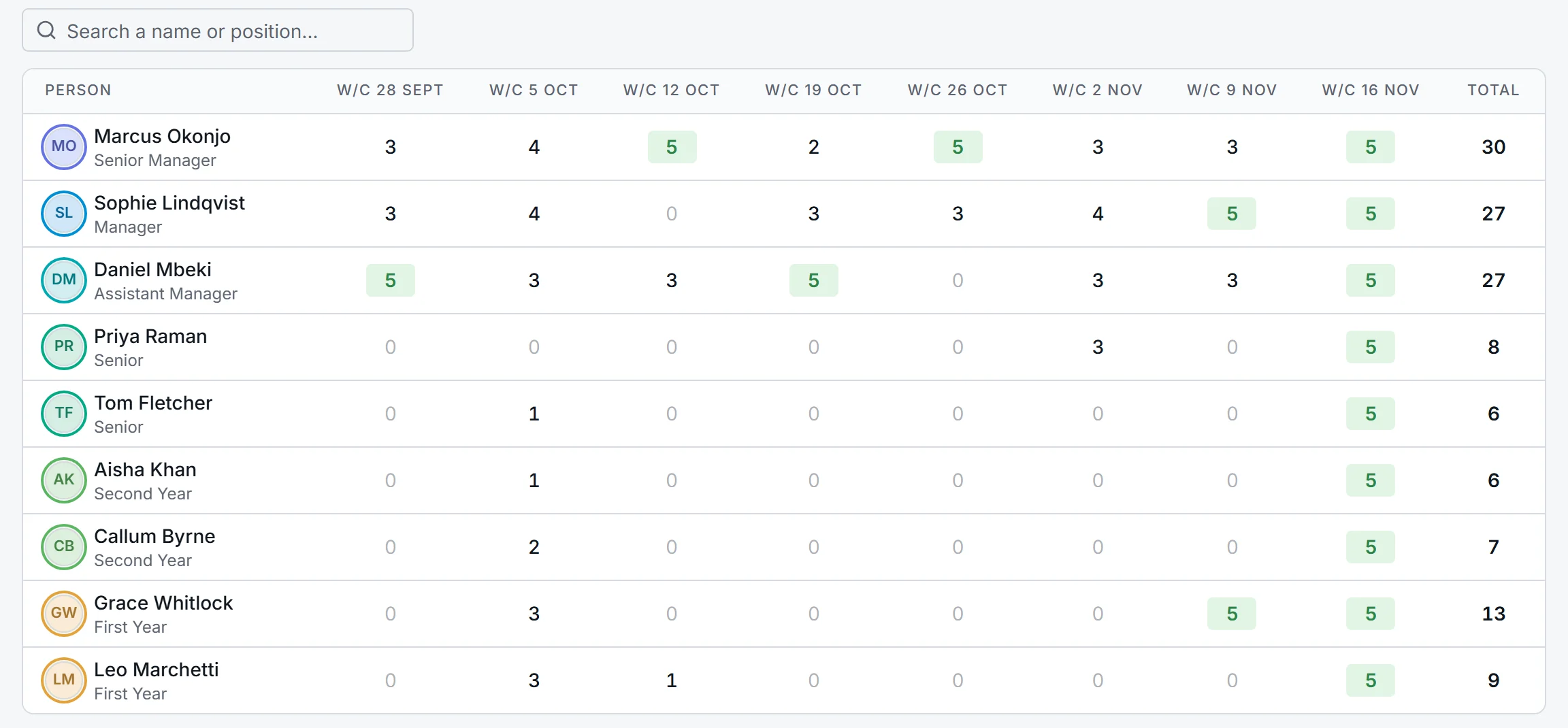
The capacity report reads the planner and counts each person's free days in each of the next eight weeks. A fully free week is highlighted. Search by name or by position when you need a second-year for a week in November.

Capacity for the next eight weeks: free days per person per week.

A timetable you can send to the client

Export for client downloads the job's plan as an Excel workbook: the first planning, fieldwork and completion days, the target signing date, who is on the team, and a week-by-week timetable. It carries names, positions and dates only. Hours, rates and fees never leave the firm.

Holiday, study and exams sit in the same grid

Book absences the same way as jobs. They show in their own colours, they count against capacity, and a job can never be dropped on top of them by accident: booking only ever fills free days.

Booking someone puts the job in their timer

The moment a person is booked on a job it appears in their list of jobs, and on the day itself their home screen offers it with one click to start. Nobody has to search for a client code.

Two years ahead, one month back

The grid opens on this week and scrolls sideways as far as two years out, so recurring audits can be pencilled in as soon as this year's is signed. Managers can be shown or hidden with one tick.

See it with a job you know.

Tell us a little about your firm and we will walk you through AuditNavi on a call: a job budgeted, the team booked, a week of time recorded.